---
title: Squarespace Code Stopped Working? 8 Easy, Proven Fixes
url: https://sukeshdas.com/squarespace-code-stopped-working/
description: If your Squarespace code stopped working after an update, here are 8 proven fixes for the July 2026 page change, block IDs, jQuery, AJAX and Safe Mode.
---
[Home](https://sukeshdas.com/)[Blog](https://sukeshdas.com/blog/)[Squarespace](https://sukeshdas.com/category/squarespace/)
# Squarespace Code Stopped Working? 8 Easy, Proven Fixes
By Sukesh Das October 11, 2026 15 min read
On this page
1. Squarespace code stopped working: fixes at a glance
2. Before you start
3. Why has my Squarespace code stopped working?
4. Did the July 2026 Squarespace update break my CSS?
5. Why did my cart CSS stop working after the March 2026 update?
6. Why did my block ID CSS stop working?
7. Why does my code say $ is not defined?
8. Why does my Squarespace code only work after a refresh?
9. Why did all my Squarespace CSS stop working at once?
10. Why did Code Injection stop working after I changed plans?
11. How do I find broken code with Squarespace Safe Mode?
12. How do I stop my Squarespace code breaking again?
13. Squarespace code stopped working FAQs
14. Want me to fix your Squarespace code?
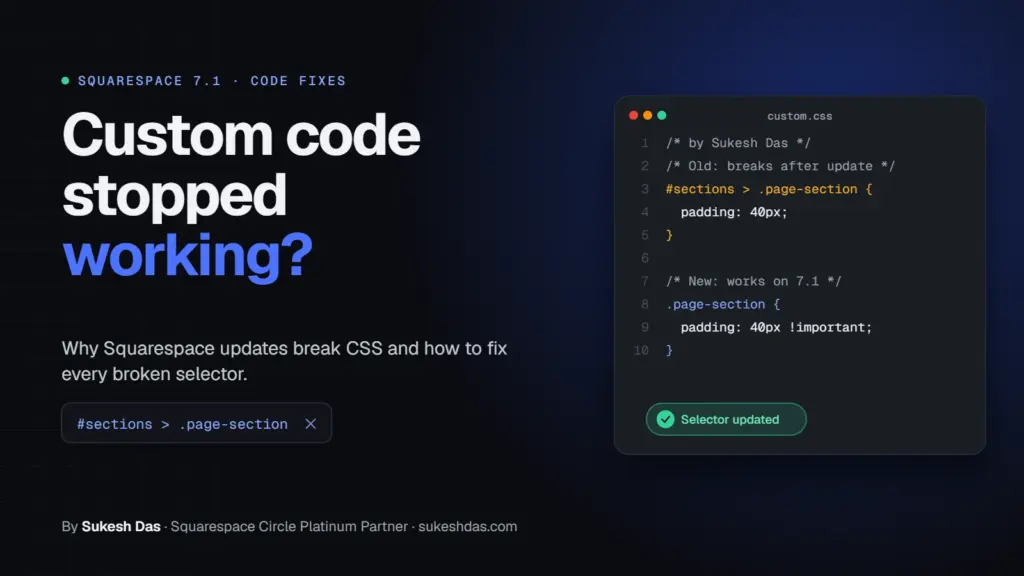
If your Squarespace code stopped working, the usual cause is that Squarespace changed the page structure your selector depended on, most recently the July 2026 update to 7.1 standalone pages, which broke selectors like `#sections > .page-section`. Other common causes are changed block IDs, jQuery not being loaded, scripts that only run on a full page load, one CSS syntax error, or a plan change that switched off Code Injection. Below is each cause with broken and fixed code.
I’m Sukesh Das, a Squarespace Circle Platinum Partner. I have built more than 1,200 websites since 2018, and while researching this guide I reviewed over 7,000 solved questions on the Squarespace Forum. “My code worked yesterday and now it doesn’t” is one of the most common threads there, and the causes repeat again and again.
## Squarespace code stopped working: fixes at a glance
Here is every reason Squarespace code stopped working that I cover in this guide, with the fix and where it goes.
| Problem | Fix | Where it goes |
| --- | --- | --- |
| Section CSS broke in July 2026 | Remove direct-child selectors like `#sections > .page-section` | Custom CSS |
| Cart or cart icon styling broke | Re-inspect the cart and target the header cart wrapper | Custom CSS |
| Block ID rule stopped matching | Use the new ID, or target the section plus block type | Custom CSS |
| Console says $ is not defined | Load jQuery or rewrite in plain JavaScript | Code Injection |
| Script only works after refresh | Run it again on the `mercury:load` event | Code Injection |
| Every rule below a point stopped | Fix the missing brace or `//` comment | Custom CSS |
| All scripts gone after a plan change | Upgrade to Core, Plus or Advanced | Billing |
| Broken code locks up the editor | Open `/config/safe` and remove it | Browser address bar |
## Before you start
- **Custom CSS works on every plan.** You find it at `Website → Pages → Custom Code → Custom CSS`.
- **Code Injection** (header, footer and per-page injection) needs a Core, Plus or Advanced plan, or one of the older Business or Commerce plans. Squarespace explains the details in its [Code Injection guide](https://support.squarespace.com/hc/en-us/articles/205815908-Using-code-injection).
- **Copy your current code somewhere safe** before you change anything. A plain text file is fine. If a fix makes things worse, you can paste the old version back.
- **Check on the live site in a private window.** The editor preview and your normal browser can both show cached or editor-only versions of the page.
## Why has my Squarespace code stopped working?
Custom CSS and JavaScript only work because they find something on the page to attach to: a class, an ID, or a certain nesting of elements. Squarespace owns that structure and updates it whenever it ships new features.
Squarespace says this openly. In its developer notes it says that only custom code written to its official spec should be considered stable. Most forum snippets are not written to any spec. They target whatever the page looked like on the day the answer was posted.
So when your Squarespace code stopped working and you changed nothing, the answer is almost always one of these:
1. Squarespace changed the HTML structure, so the selector no longer matches.
2. An ID changed because a block or section was deleted and added again.
3. A script depends on something Squarespace doesn’t load, like jQuery.
4. A script runs too early, or only once, because of how Squarespace loads pages.
5. A small typo somewhere else in your CSS is stopping the rest of it.
6. Your plan changed and Code Injection is no longer active.
When your Squarespace code stopped working, work through the sections below in order. The first one is the most likely cause in late 2026.
## Did the July 2026 Squarespace update break my CSS?
Very possibly. If your Squarespace code stopped working in July or August 2026, this is the first thing to check. From mid-July 2026, Squarespace rolled out a new page structure on all 7.1 standalone pages, meaning regular pages that are not blogs, stores, portfolios or events. Page sections now sit one level deeper than before.
The old structure looked like this:
```
```
The new structure adds a wrapper section called `region`:
```
```
Any selector that relied on page sections being direct children of the article now fails. Squarespace lists the patterns that break in its [standalone pages DOM change notice](https://developers.squarespace.com/changes/standalone-pages-dom-changes): direct-child selectors such as `#sections > .page-section`, broad rules on `section::before` and `section::after`, and position-based selectors like `article > *:first-child`.
Here is a typical snippet from an older forum answer that stopped working:
```
/* BROKEN after July 2026, shown by Sukesh Das, sukeshdas.com */
#sections > .page-section:first-child {
min-height: 90vh;
}
.sections > .page-section {
padding-top: 40px;
}
article > section:nth-child(2) {
background: #f5f1ea;
}
section::before {
content: "";
}
```
And here is the fixed version. It drops the direct-child arrow and targets the `page-section` class itself, which still exists in both structures:
```
/* Fixed section selectors by Sukesh Das, sukeshdas.com */
/* First section on the page (Squarespace confirms this still works) */
section.page-section:first-child {
min-height: 90vh;
}
/* All sections, without depending on nesting */
.page-section {
padding-top: 40px;
}
/* One specific section: use its ID instead of its position */
section[data-section-id="PASTE-SECTION-ID"] {
background: #f5f1ea;
}
/* Scope pseudo-elements to page sections only */
.page-section::before {
content: "";
}
```
If some pages on your site still use the old structure (blogs and stores were not part of this change), you can write one selector that matches both:
```
/* Old and new structure in one rule, by Sukesh Das, sukeshdas.com */
:is(#sections, section.region) > .page-section:nth-child(2) {
background: #f5f1ea;
}
```
My advice is simple: target sections by their `data-section-id` whenever you mean one specific section. Position-based rules like `nth-child(2)` break whenever you add a section above, even without a Squarespace update.
Most of the cases I have seen where Squarespace code stopped working this summer come down to this one change. To find the ID, right-click the section on your live site, choose **Inspect** , and look for `data-section-id="..."` on the `section` tag.
## Why did my cart CSS stop working after the March 2026 update?
If your Squarespace code stopped working only on the cart, the date is a clue. In March 2026 Squarespace updated the cart experience with a mini cart that slides in from the side instead of always sending shoppers to a full cart page. When a feature like that changes, the HTML behind it changes too, and CSS written for the old cart can stop matching.
I’m not going to list the new internal class names here, because they are not documented and they may change again. What works long term is a two step approach.
**Step 1: style the cart icon through the header wrapper.** The header cart button sits inside `.header-actions-action--cart`, a class that still appears in current forum answers:
```
/* BROKEN: targets old cart markup, shown by Sukesh Das, sukeshdas.com */
.Cart-inner .icon {
color: #1a1a1a;
}
```
```
/* Fixed cart icon styling by Sukesh Das, sukeshdas.com */
.header-actions-action--cart a {
color: #1a1a1a !important;
}
.header-actions-action--cart svg {
stroke: currentColor;
width: 26px;
height: 26px;
}
```
**Step 2: re-inspect the new cart panel before restyling it.** Add a product to the cart on the live site, open the mini cart, right-click inside it and choose Inspect. Copy the class names you see today, and write fresh rules for them. Don’t reuse cart selectors from forum answers posted before March 2026.
If you hid the cart page or redirected it with JavaScript, test the checkout flow again from start to finish. A script that clicked or hid old cart elements can quietly break checkout, which costs real sales. For more store styling, see my guide to [Squarespace store page customization](https://sukeshdas.com/squarespace-store-page-customization/).
## Why did my block ID CSS stop working?
Squarespace gives each block an ID like `#block-yui_3_17_2_1_1712345678901_12345`. Thousands of forum answers use these IDs to style one block. They are fine, until the block is replaced. This is the most common reason Squarespace code stopped working on just one block.
Block IDs change when you delete a block and add a new one, duplicate a section or page, paste a section from another page, or restore an older version. The old rule then targets an ID that no longer exists, and nothing happens.
```
/* BROKEN: block was re-created, shown by Sukesh Das, sukeshdas.com */
#block-yui_3_17_2_1_1712345678901_12345 .sqs-block-button-element {
background: #2f5bff;
}
```
The quick fix when block-level Squarespace code stopped working is to inspect the block again and copy the new ID. The lasting fix is to target the section ID plus the block type, because section IDs survive edits inside the section:
```
/* Fixed: section ID plus block type, by Sukesh Das, sukeshdas.com */
section[data-section-id="PASTE-SECTION-ID"] .sqs-block-button-element {
background: #2f5bff !important;
}
/* Fluid Engine blocks also have a wrapper class with the ID */
.fe-block-PASTE-BLOCK-ID .sqs-block-button-element {
background: #2f5bff !important;
}
```
For anything you will reuse, give it your own class. A Code Block that wraps content in `` is never renamed by Squarespace, so CSS that targets `.sd-promo` will keep working no matter what.
The free Squarespace ID Finder extension for Chrome shows section and block IDs with one click, which makes this much faster.
## Why does my code say $ is not defined?
If your Squarespace code stopped working after a move from 7.0 to 7.1, jQuery is a likely cause. Squarespace 7.1 does not load jQuery. Many older tutorials and plugins were written for 7.0 templates or for sites where someone had added jQuery manually.
Open your browser console (F12, then the Console tab) and you will see `Uncaught ReferenceError: $ is not defined` or `jQuery is not defined`.
```
```
You have two fixes. The first is to load jQuery yourself, above the script that needs it, in `Website → Pages → Custom Code → Code Injection → Header`:
```
```
The second, which I prefer, is to rewrite small scripts in plain JavaScript. It loads nothing extra and keeps your site faster:
```
```
Make sure jQuery is only loaded once. Two copies from two different snippets can cause the same kind of silent failures.
## Why does my Squarespace code only work after a refresh?
Many 7.1 sites load new pages with AJAX. When a visitor clicks an internal link, Squarespace swaps the page content without a full reload. Your `DOMContentLoaded` code ran once on the first page, and it does not run again on the next one.
The symptom is very specific: the script works when you land on a page directly or press refresh, but not when you arrive by clicking a menu link. It looks as if your Squarespace code stopped working at random, but it is completely predictable.
```
```
Squarespace fires a `mercury:load` event after each AJAX page change. Put your code in a named function and run it on both events:
```
```
The `sdDone` flag stops the code running twice on the same element. That matters for anything that adds buttons, moves elements or attaches click handlers.
If you would rather switch AJAX loading off, some 7.1 sites have an **Enable Ajax Loading** option in the site styles. Not every site shows it, so the event approach above is the safer fix.
## Why did all my Squarespace CSS stop working at once?
When a whole block of CSS stops at once, look for a syntax error before you assume your Squarespace code stopped working because of an update. Browsers read CSS from top to bottom, and one missing `}` makes them treat everything after it as part of the broken rule.
This often happens when someone pastes a new snippet in the middle of an existing one, or copies code from a forum and misses the last line.
```
/* BROKEN: three common mistakes, shown by Sukesh Das, sukeshdas.com */
@media screen and (max-width: 767px) {
.header-title-logo img {
max-height: 40px;
}
/* the media query is never closed */
// this comment style is not valid in CSS
.header-nav-item a {
color: #222
font-weight: 600;
}
```
```
/* Fixed syntax by Sukesh Das, sukeshdas.com */
@media screen and (max-width: 767px) {
.header-title-logo img {
max-height: 40px;
}
}
/* CSS comments always use slash-star like this */
.header-nav-item a {
color: #222;
font-weight: 600;
}
```
The three mistakes were a media query without its closing brace, a `//` comment (which works in JavaScript and Less, but not plain CSS), and a missing semicolon after `#222`.
The Squarespace CSS editor sometimes shows a red error marker on the faulty line. Not always, though. When it doesn’t, paste your code into the free [W3C CSS Validator](https://jigsaw.w3.org/css-validator/#validate_by_input) and it will point at the line. I cover more of these editor versus live problems in [why Squarespace CSS is not working on the live site](https://sukeshdas.com/squarespace-css-not-working-on-live-site/).
## Why did Code Injection stop working after I changed plans?
Code Injection and JavaScript in Code Blocks are only active on Core, Plus and Advanced plans, plus the legacy Business and Commerce plans. If a site moves to the Basic or legacy Personal plan, or a trial ends, the injected code stays saved but stops running.
If all of your Squarespace code stopped working on the same day, check this before anything else. That is why a site can lose its popups, tracking pixels, sticky buttons and custom scripts overnight while all the CSS keeps working. Custom CSS is available on every plan, so it is not affected.
Check `Settings → Billing` first. If you want to stay on a lower plan, move what you can into Custom CSS. Many effects people do with JavaScript, like changing the header on scroll or showing a sticky button, can be done in CSS alone. For example, this sticky mobile button works without any script:
```
/* CSS-only sticky mobile button by Sukesh Das, sukeshdas.com */
@media screen and (max-width: 767px) {
section[data-section-id="PASTE-SECTION-ID"] .sqs-block-button {
position: fixed;
left: 12px;
right: 12px;
bottom: 12px;
z-index: 999;
}
}
```
Tracking scripts are different, and they are often the first sign that Squarespace code stopped working after a plan change. If you rely on Google Analytics, use the built-in Squarespace integration in your site settings, which works without Code Injection.
## How do I find broken code with Squarespace Safe Mode?
Sometimes broken code does more than fail. A bad script can hide the page, freeze the editor or redirect you, and then you can’t get in to remove it. When Squarespace code stopped working and locked you out as well, Safe Mode is the way back in.
Add `/config/safe` to the end of your site address, for example `yoursite.squarespace.com/config/safe`. The editor opens with custom code switched off while you edit, so you can open Code Injection, Code Blocks and Custom CSS and remove the problem.
Once you’re in, this is how I narrow it down:
1. Copy all of your Custom CSS and Code Injection into a text file as a backup.
2. Remove the footer injection, save, and check the live site in a private window.
3. If the problem is gone, add the snippets back one at a time until it returns. The last one you added is the culprit.
4. Repeat for the header injection, page-level injection and Code Blocks.
5. For CSS, comment out half of it with `/*` and `*/`, check, and keep halving.
Your browser console is the other tool when Squarespace code stopped working and you don’t know why. Open the live site, press F12 and look at the Console tab. Red errors usually name the file and line where the script failed.
## How do I stop my Squarespace code breaking again?
Every time a client tells me their Squarespace code stopped working, the fix is quicker when the code was written well in the first place. You can’t stop Squarespace from updating, but you can write code that survives those updates much better. These are the rules I follow on client sites:
- **Avoid the direct-child arrow** (`>`) between Squarespace wrappers. Use a space instead, so extra wrapper layers don’t matter.
- **Target by ID, not position.** `data-section-id` beats `nth-child(3)` every time.
- **Use your own classes** inside Code Blocks, with a prefix like `sd-`, so they never clash with Squarespace names.
- **Write plain JavaScript** and always support `mercury:load`.
- **Comment every snippet** with what it does and when you added it. Future you will be grateful.
- **Check the Squarespace changelog** on [developers.squarespace.com](https://developers.squarespace.com/changes/standalone-pages-dom-changes) a few times a year.
Here is a short example of a well organised Custom CSS file. Sections are labelled, nothing depends on nesting, and every rule is easy to find:
```
/* Organised Custom CSS template by Sukesh Das, sukeshdas.com */
/* ===== HEADER (added Oct 2026) ===== */
.header-title-logo img {
max-height: 60px;
}
/* ===== HOME HERO (section ID, not position) ===== */
section[data-section-id="PASTE-SECTION-ID"] h1 {
letter-spacing: -0.02em;
}
/* ===== CUSTOM CODE BLOCKS (own prefix) ===== */
.sd-promo {
border-radius: 12px;
}
```
If your header or buttons were the parts that broke, I have fresh, current code in my guides to [Squarespace header CSS](https://sukeshdas.com/squarespace-header-css/) and [Squarespace button CSS](https://sukeshdas.com/squarespace-button-css/). Mobile layout issues are covered in [how to fix Squarespace mobile issues](https://sukeshdas.com/fix-squarespace-mobile-issues/).
## Squarespace code stopped working FAQs
### Why has my Squarespace code stopped working when I changed nothing?
Squarespace changed something your code depended on. The most common causes are a page structure update, such as the July 2026 change to 7.1 standalone pages, or a block that was re-created and now has a new ID.
### What changed in the July 2026 Squarespace update?
On 7.1 standalone pages, `article.sections#sections` was replaced by `article.page-regions#page-regions`, with a new `section.region` wrapper around the page sections. Selectors like `#sections > .page-section` no longer match.
### How do I fix CSS that used #sections > .page-section?
Remove the direct-child part and target `.page-section` directly, or target one section with `section[data-section-id="..."]`. `section.page-section:first-child` still works for the first section.
### Does Squarespace 7.1 include jQuery?
No. If a script uses `$` or `jQuery`, either load jQuery in your header Code Injection before it, or rewrite the script in plain JavaScript.
### Why does my script only work after I refresh the page?
Squarespace loads pages with AJAX, so code that runs on `DOMContentLoaded` only runs once. Run the same function on the `mercury:load` event as well.
### How do I open Squarespace Safe Mode?
Add `/config/safe` to the end of your site address. Custom code is switched off in the editor so you can remove a script that is breaking the page.
### Will downgrading my Squarespace plan delete my code?
The code stays saved, but Code Injection and JavaScript stop running on plans that don’t include them. Custom CSS keeps working on every plan.
### Why did my block ID selector stop working?
The block was deleted and added again, duplicated or restored, which gives it a new ID. Inspect it again for the new ID, or target the section ID plus the block type instead.
### Can one mistake stop all my Squarespace CSS?
Yes. A missing closing brace or a `//` comment can stop every rule after it. Check the last snippet you added first, then run the code through a CSS validator.
## Want me to fix your Squarespace code?
If your Squarespace code stopped working and you would rather not dig through it yourself, I can audit your Custom CSS and Code Injection, fix what broke, and rewrite it so it survives future updates. I build and support Squarespace sites every week as a [Squarespace web designer](https://sukeshdas.com/services/squarespace-web-designer/). [Send me a short brief](https://sukeshdas.com/contact-us/?service=squarespace#brief) and I will reply within one working day.
Related guide: [How to add age verification to Squarespace with free popup code](https://sukeshdas.com/how-to-add-an-age-verification-popup-to-your-squarespace-website-no-plugins-needed/).
Related service
[Squarespace website development](https://sukeshdas.com/services/squarespace-web-designer/)
Squarespace 7.1 sites that do not look like a template. As a Squarespace Circle Platinum Partner, custom code, member areas and commerce are routine work for me.
[See the service](https://sukeshdas.com/services/squarespace-web-designer/) [Case study: Monarch Elite Transport](https://sukeshdas.com/project/monarch-elite-transport/)
Share this article
- [Squarespace 7.1](https://sukeshdas.com/tag/squarespace-7-1/)
- [Squarespace code injection](https://sukeshdas.com/tag/squarespace-code-injection/)
- [Squarespace CSS](https://sukeshdas.com/tag/squarespace-css/)
- [Squarespace troubleshooting](https://sukeshdas.com/tag/squarespace-troubleshooting/)
- [Squarespace updates](https://sukeshdas.com/tag/squarespace-updates/)

Written by Sukesh Das
Web designer and developer with 1,200+ sites built. If this article describes your problem, I can fix it for you.
[Ask me about your site](https://sukeshdas.com/contact-us/)
## Start the discussion [Cancel reply](/squarespace-code-stopped-working/?format=md#respond)
On this page
15 min read
1. Squarespace code stopped working: fixes at a glance
2. Before you start
3. Why has my Squarespace code stopped working?
4. Did the July 2026 Squarespace update break my CSS?
5. Why did my cart CSS stop working after the March 2026 update?
6. Why did my block ID CSS stop working?
7. Why does my code say $ is not defined?
8. Why does my Squarespace code only work after a refresh?
9. Why did all my Squarespace CSS stop working at once?
10. Why did Code Injection stop working after I changed plans?
11. How do I find broken code with Squarespace Safe Mode?
12. How do I stop my Squarespace code breaking again?
13. Squarespace code stopped working FAQs
14. Want me to fix your Squarespace code?
Browse topics Squarespace
- [Squarespace8](https://sukeshdas.com/category/squarespace/)
- [Tutorial6](https://sukeshdas.com/category/tutorial/)
- [Website & Conversion12](https://sukeshdas.com/category/website-conversion/)
- [Lead Generation6](https://sukeshdas.com/category/lead-generation/)
- [SEO & Local SEO6](https://sukeshdas.com/category/seo-local-seo/)
- [Wordpress3](https://sukeshdas.com/category/wordpress/)
- [Divi2](https://sukeshdas.com/category/tips-tricks/divi/)
- [AI Search2](https://sukeshdas.com/category/ai-search/)
- [Email Marketing2](https://sukeshdas.com/category/email-marketing/)
- [Elementor1](https://sukeshdas.com/category/tips-tricks/elementor/)
- [All articles](https://sukeshdas.com/blog/)
Want this handled for you?
Send a short brief and get a fixed quote.
[Get a free quote](https://sukeshdas.com/contact-us/)
Keep reading
## More from the *blog.*
[All articles](https://sukeshdas.com/blog/)
Tips & Tricks Oct 11, 2026
### [HandyMCP: The Free WordPress MCP Server Plugin I Built for Claude, ChatGPT and Cursor](https://sukeshdas.com/wordpress-mcp-server-plugin/)
I built HandyMCP, a free WordPress MCP server plugin, so Claude, ChatGPT, Cursor and Claude Code…
Tips & Tricks Oct 4, 2026
### [How to Find Out What a Website Is Built With (Free Chrome Extension)](https://sukeshdas.com/what-is-this-website-built-with/)
I built Undersite to replace the pile of extensions and lookup sites I used to check…
SEO & Local SEO Oct 3, 2026
### [Squarespace Schema Markup: 5 Proven JSON-LD Templates (Free)](https://sukeshdas.com/squarespace-schema-markup/)
Learn what Squarespace schema markup the platform adds on its own and how to add the…