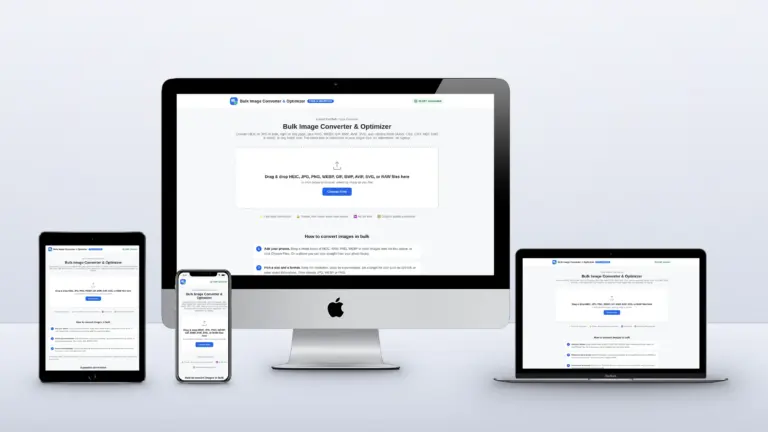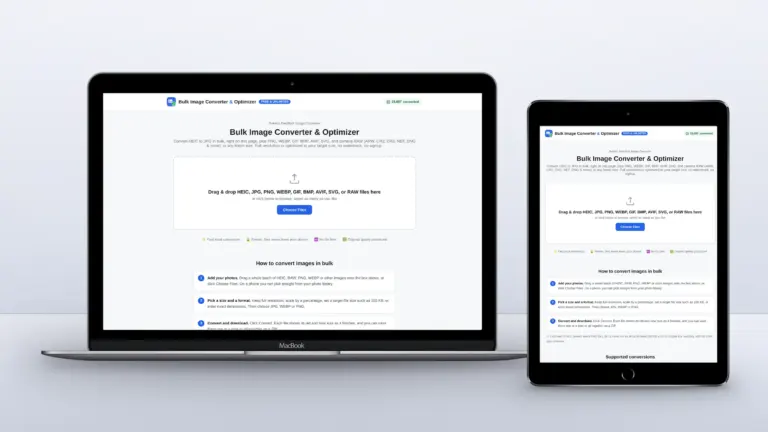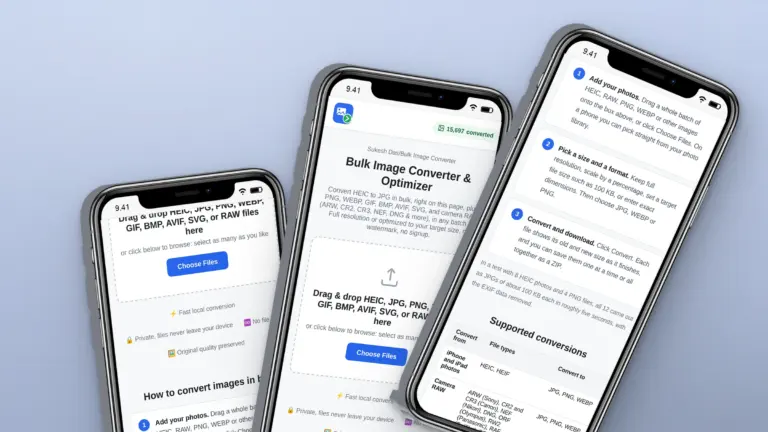

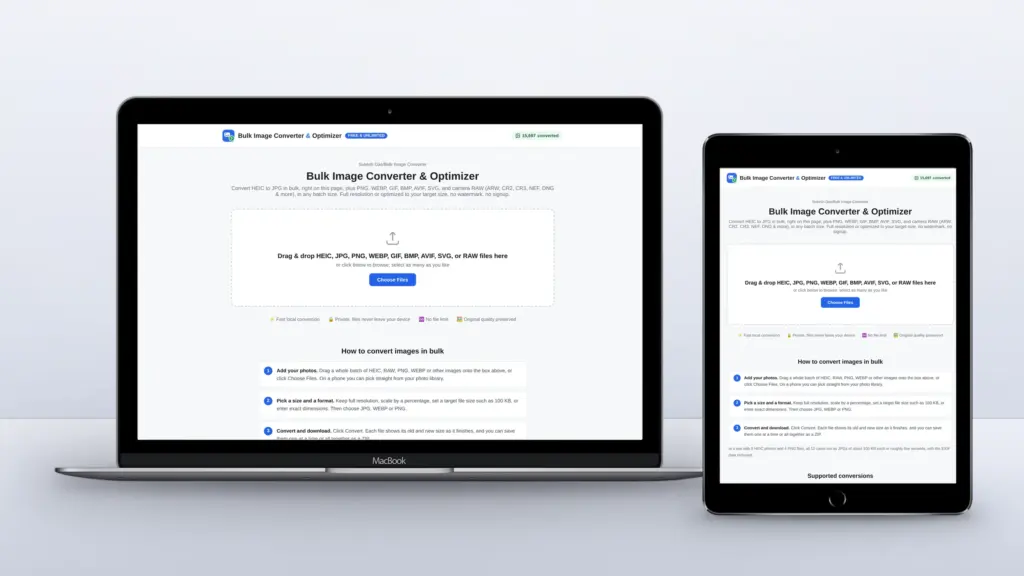
iPhones save photos as HEIC by default. They look great and take about half the space of a JPG, but a lot of places still refuse them: older Windows PCs, some website builders, government and job portals, print shops. If you have one photo, any converter will do. If you have a hundred, you need to convert HEIC to JPG in bulk, and you probably don’t want to upload a hundred personal photos to a stranger’s server to do it.
Quick answer: Open the free Bulk Image Converter, drop in all your HEIC files, choose JPG and click Convert. Everything happens in your browser, there is no file limit, and you can download the whole batch as one ZIP. On a Mac you can also use Finder’s Convert Image quick action, and on an iPhone you can switch the camera to Most Compatible so new photos are saved as JPG.
What HEIC is, and why so many sites reject it
HEIC is Apple’s version of HEIF, a newer image format that iPhones have used by default since iOS 11 in 2017 (Apple Support). It compresses much better than JPG, which is why your camera roll fits on your phone. The catch is support. Windows needs extra codecs to open it, many web forms only accept JPG or PNG, and plenty of website platforms won’t take it either.
JPG is the safe choice when you need a photo to open everywhere. PNG is lossless but makes photos very large. WebP is smaller than JPG and fine for websites, but not every upload form takes it.
Method 1: Convert HEIC to JPG in bulk in your browser (any computer or phone)
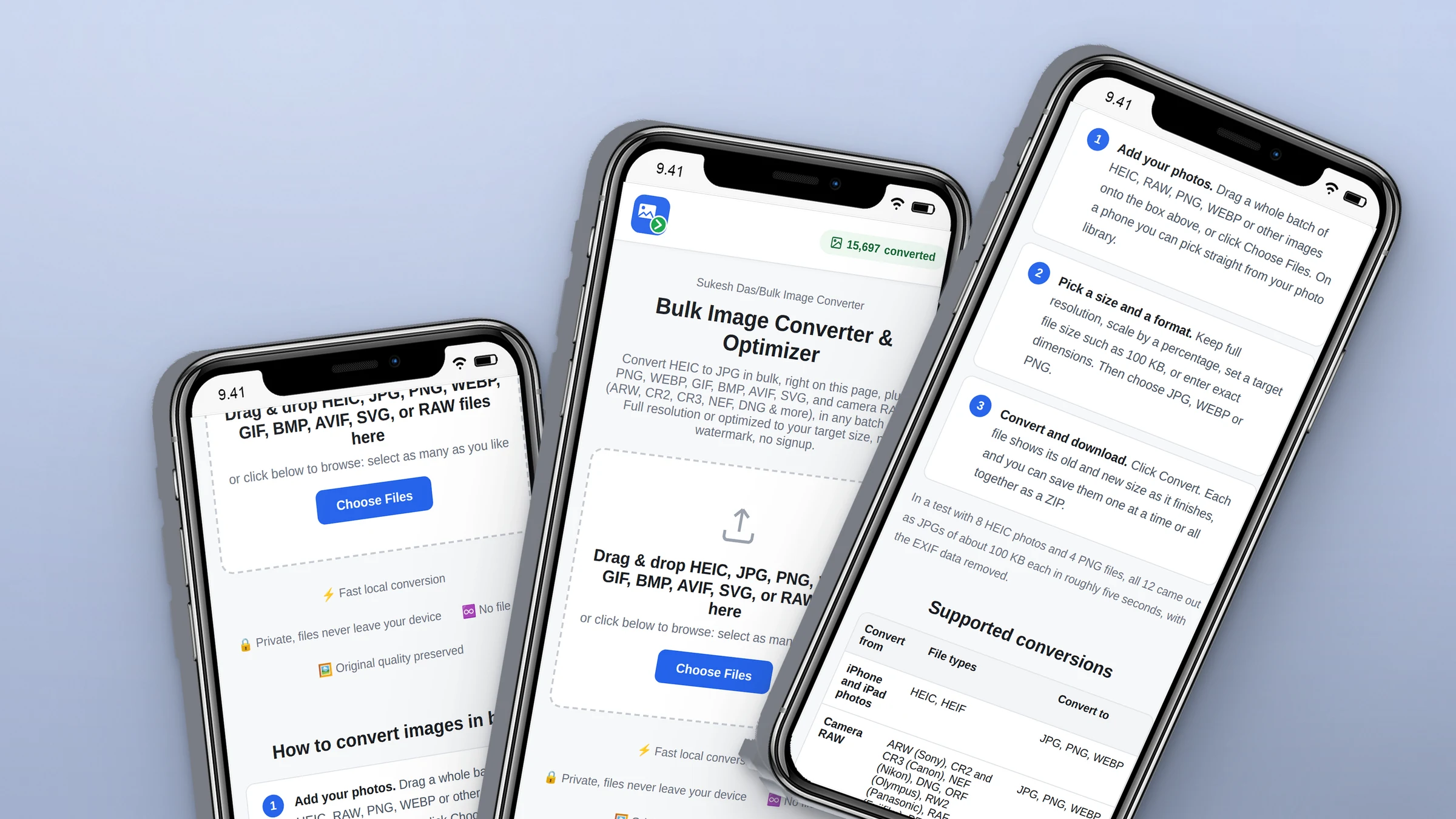
This is the method I built the Bulk Image Converter for. It works on Windows, Mac, Linux, Android and iPhone, and your photos are never uploaded: the HEIC decoding runs on your own device using WebAssembly.
- Open the converter and drag your HEIC photos onto the drop area, or click Choose Files and select them all.
- Under Output format, choose JPG. Leave quality around 90% for photos you want to keep, or lower it for smaller files.
- Optional: choose File Size if a website has an upload limit, for example 500 KB.
- Click Convert, then Download All as ZIP.
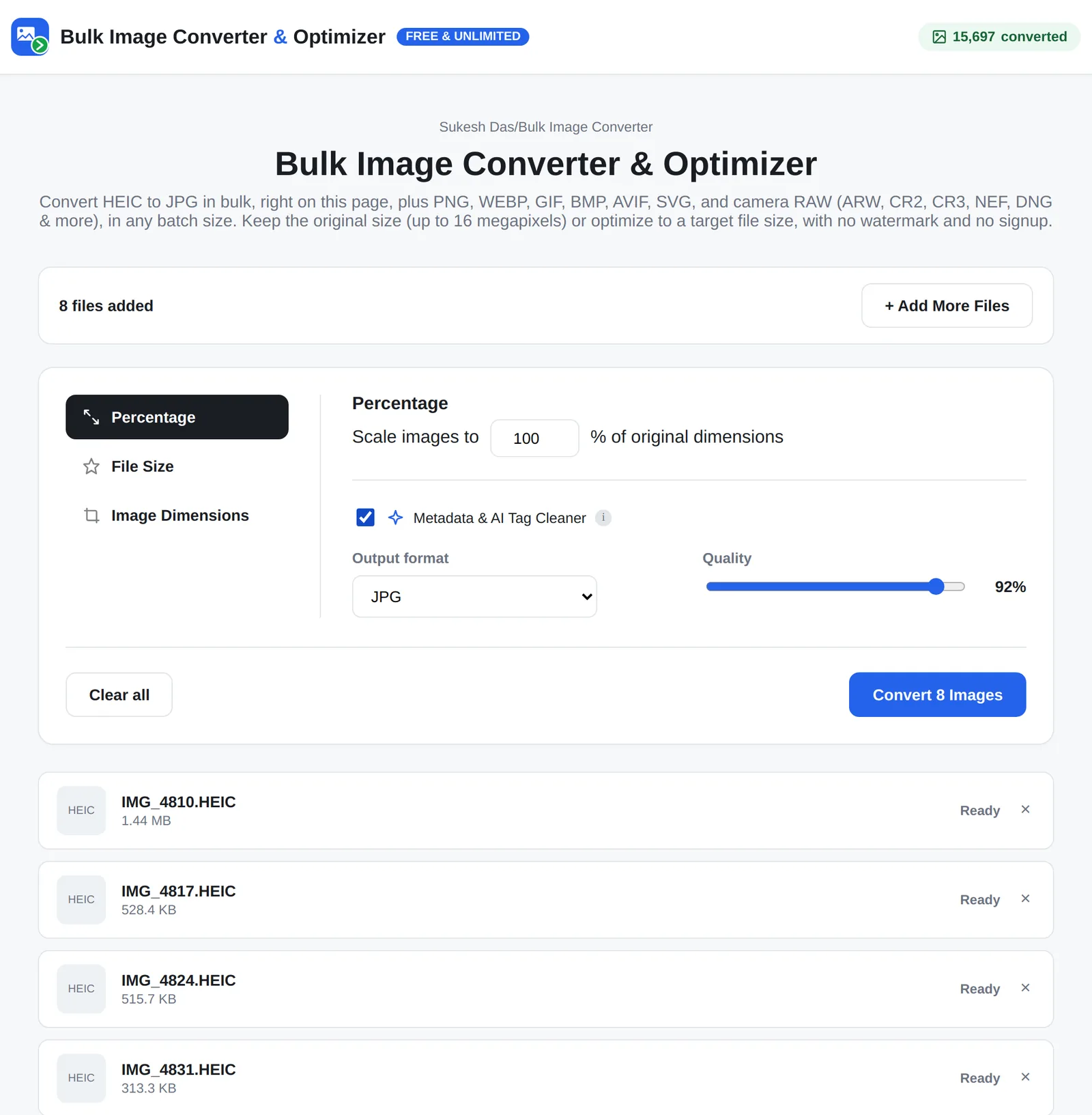
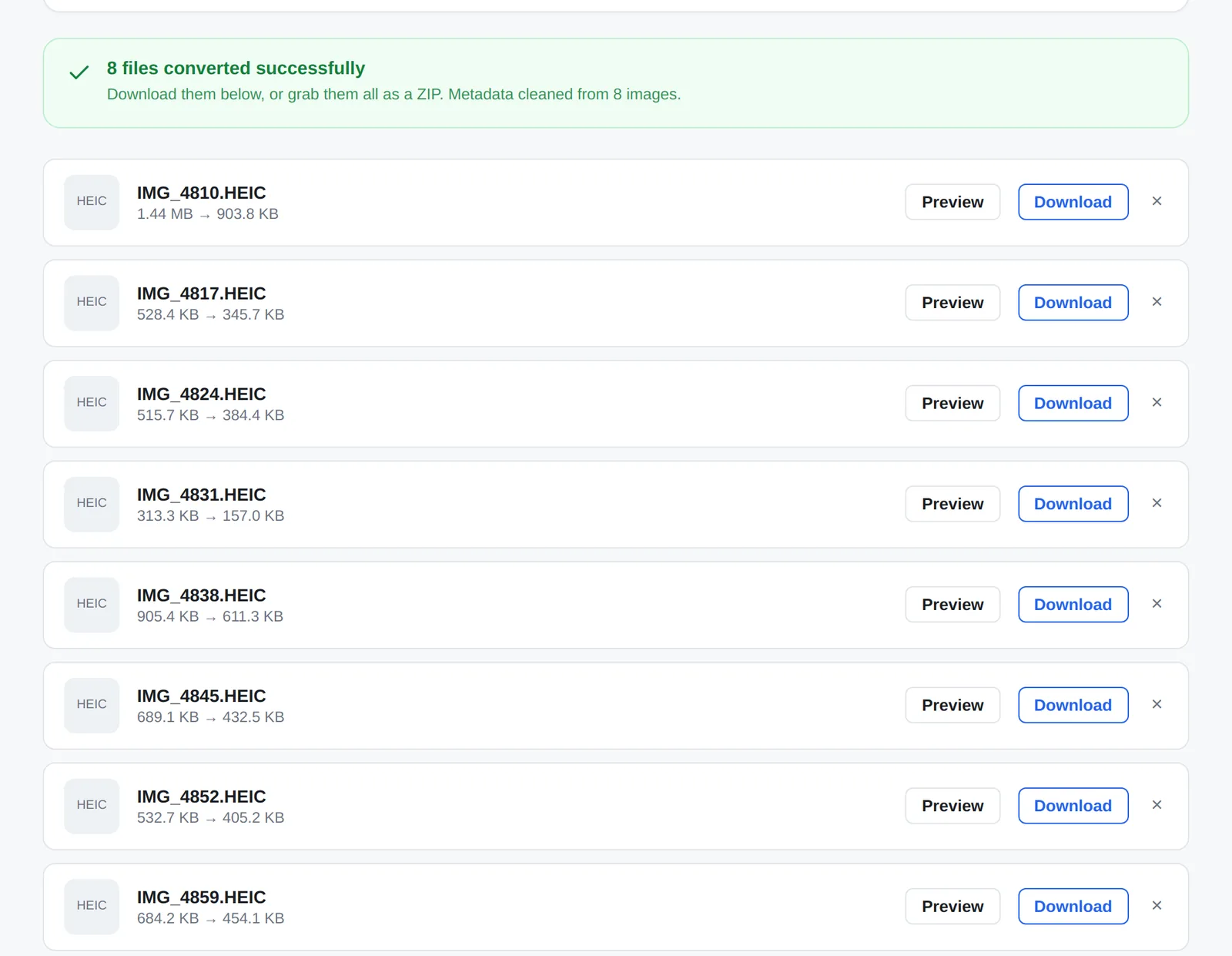
Each row shows the original and the new size before you download. In the batch above, eight HEIC photos at 92% quality came out as JPGs between 157 KB and 904 KB. When I set a 100 KB limit instead, a batch of 12 photos was done in about five seconds.
Method 2: Convert HEIC to JPG on a Mac without any app
macOS can convert HEIC on its own. In Finder, select the photos, right-click, and choose Quick Actions > Convert Image. Pick JPEG and a size, and macOS saves a JPG copy next to each file. Preview can do the same: open all the photos, select them in the sidebar and use File > Export Selected Images.
Both work well for a few dozen files. For hundreds, or when you also need a size limit, the browser converter is quicker because you can set a target file size for the whole batch.
Method 3: Convert HEIC to JPG on Windows 10 and 11
Windows can only open HEIC once the HEIF Image Extensions and HEVC Video Extensions are installed from the Microsoft Store (Windows Central). Even then, the Photos app converts one picture at a time with Save as.
For a batch, open the converter in Edge or Chrome instead. It decodes HEIC inside the page, so you don’t need either extension, and you get the whole folder back as a ZIP.
Method 4: Stop your iPhone saving HEIC in the first place
- Settings > Camera > Formats > Most Compatible saves new photos as JPG. Files are bigger, so your storage fills faster.
- Settings > Photos > Transfer to Mac or PC > Automatic keeps HEIC on the phone but converts to JPG when you copy photos to a computer with a cable.
Neither setting changes photos you already have, which is where bulk conversion comes in.
Which method should you use?
| Situation | Best option |
|---|---|
| Hundreds of photos, any computer | Browser converter, download as ZIP |
| A few photos on a Mac | Finder Convert Image or Preview |
| Windows without HEIC codecs | Browser converter in Edge or Chrome |
| Upload form with a size limit | Browser converter with File Size set to the limit |
| You never want HEIC again | iPhone camera set to Most Compatible |
Why your JPGs are bigger than the HEIC files
This surprises people. HEIC is simply more efficient, so a JPG at the same visual quality is usually larger. If size matters, lower the quality slider to 80%, set a target file size, or choose WebP if the place you are uploading to accepts it.
Need help with images on your website?
I build websites on WordPress, Squarespace and custom code, and I wrote this converter because clients’ photos so often arrive in formats their site won’t take. If your site is slow because of heavy images, take a look at my speed optimization service, or send me a message.
Frequently asked questions
Is it safe to convert HEIC photos online?
It depends on the tool. Many online converters upload your photos to their servers. The Bulk Image Converter processes everything in your browser, so the photos never leave your device.
How many HEIC files can I convert at once?
There is no fixed limit in the browser converter. Very large batches simply take a little longer, and each file can be up to 200 MB.
Does converting HEIC to JPG lose quality?
Some, because JPG is a lossy format, but at 90% quality the difference is very hard to see. Keep your original HEIC files if you may want to edit the photos later.
Does the JPG keep the photo’s location data?
Not with this converter. Every image is rebuilt from its pixels, so EXIF data, including GPS location, is left behind.