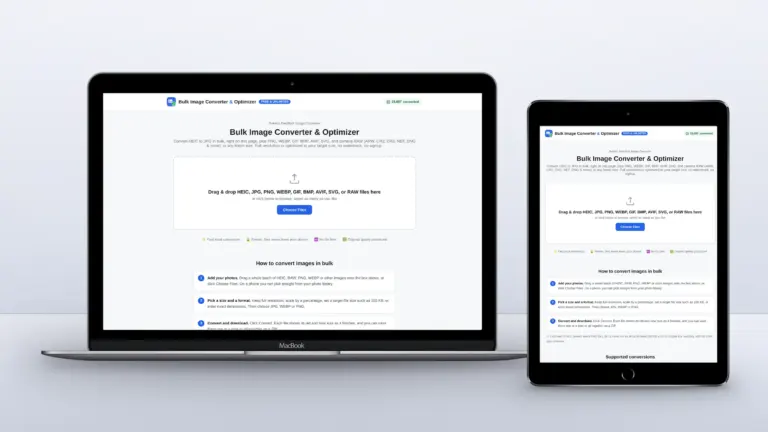

Application portals, government forms, job sites and marketplaces love a file size limit. “Maximum 100 KB” is common, and it is always one photo too many to fix by trial and error. Lowering the quality, exporting, checking the size and trying again works for one image. For thirty it eats an afternoon.
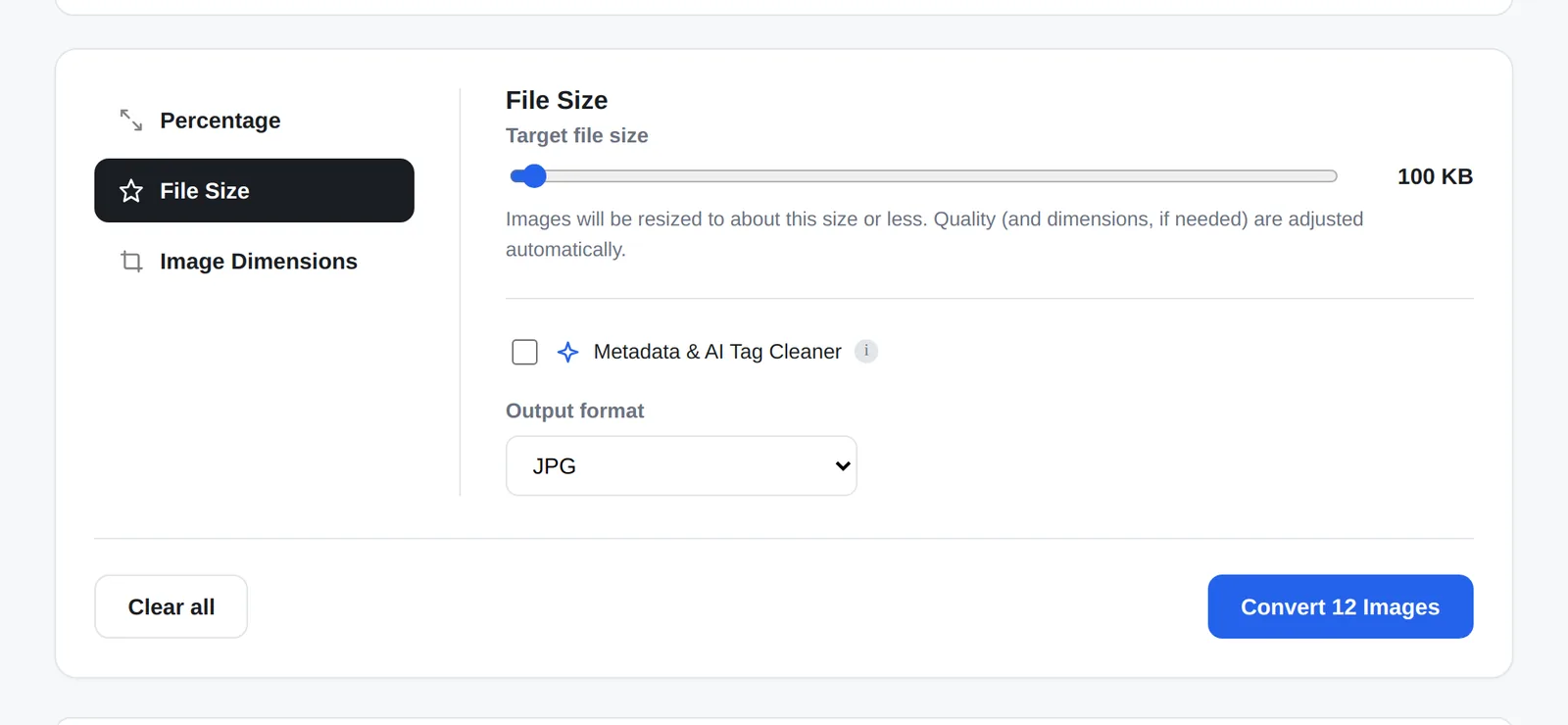
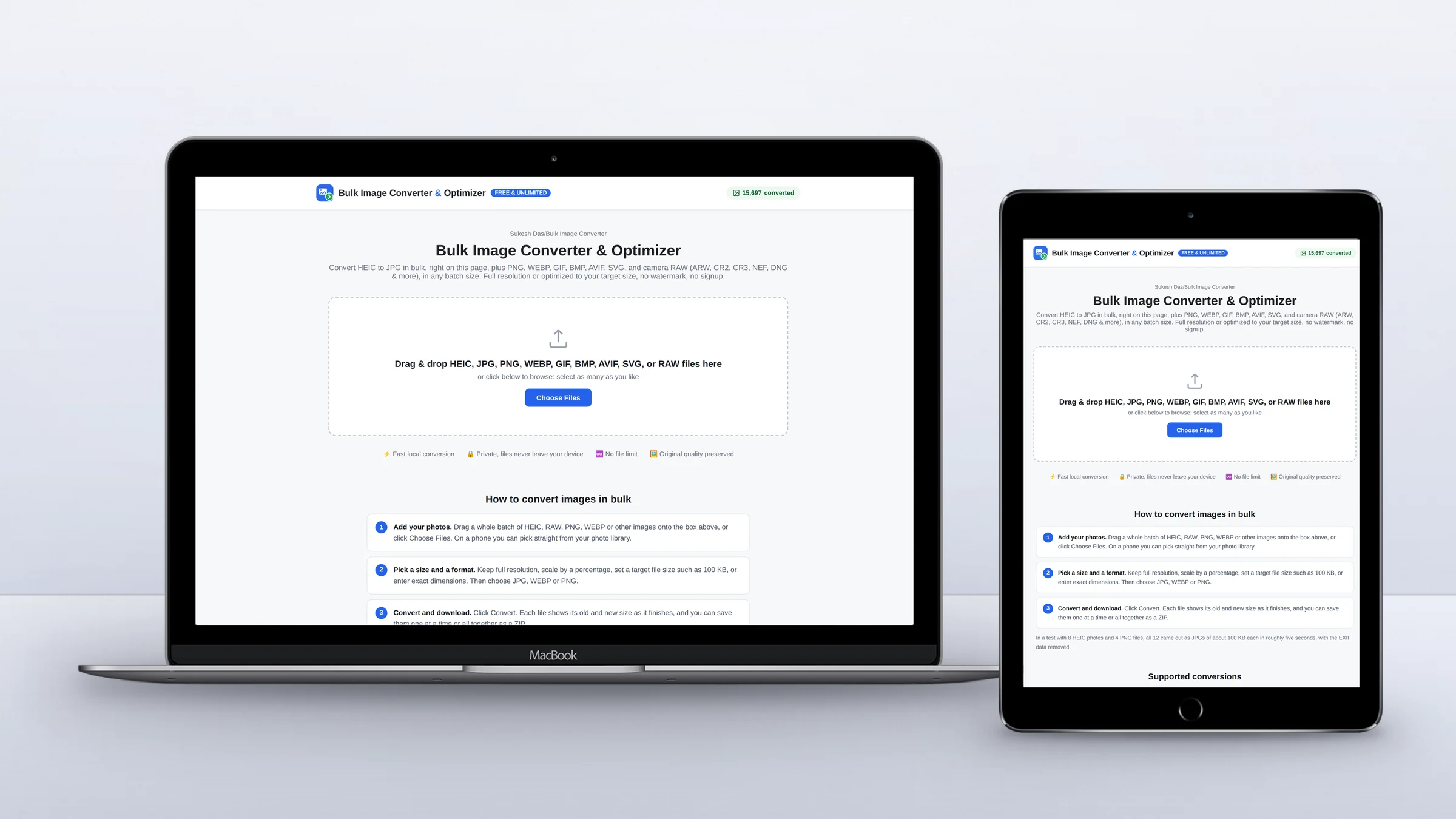
Quick answer: In the free Bulk Image Converter, add your photos, choose File Size, set the slider to 100 KB (anything from 20 KB to 5 MB works), pick JPG and click Convert. Each image is saved at the highest quality that fits under the limit, and only shrunk in size if quality alone is not enough.
How it hits the target size
For JPG and WebP, the converter tries a quality, checks the result, and narrows in on the highest quality that still fits, in a handful of passes per image. If even a low quality is too big, it reduces the dimensions by 15% at a time until the file fits. PNG has no quality setting, so PNGs are scaled down until they fit.
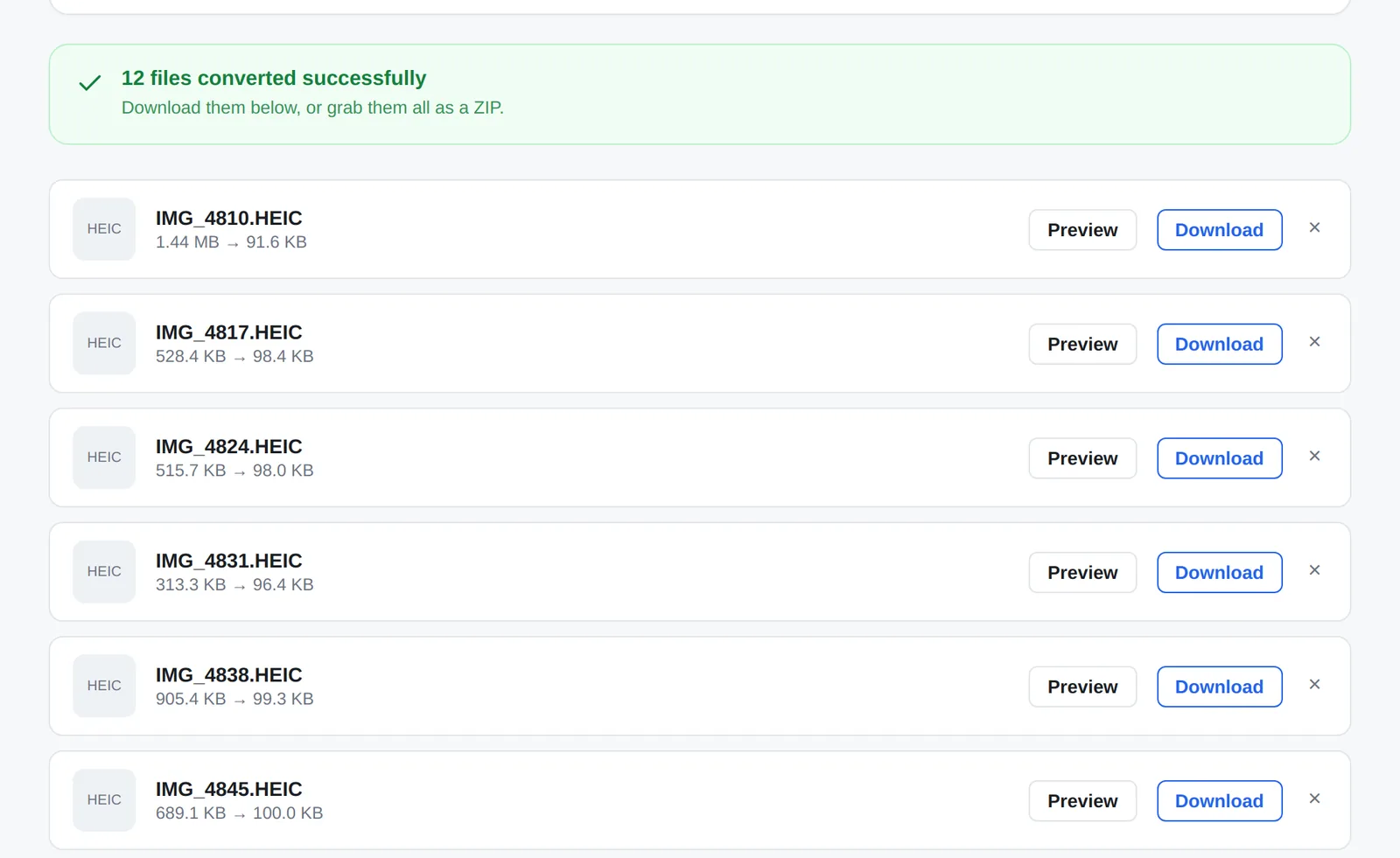
In my test, 12 photos (8 HEIC and 4 PNG, from 258 KB to 1.7 MB each) were compressed to between 92 and 100 KB in about six seconds.
Common size limits and what to set
| Where it is going | Typical limit | What to set |
|---|---|---|
| Application or ID photo forms | 20 to 100 KB | File Size at the limit, JPG |
| Website blog and gallery images | Under 200 to 500 KB | File Size 300 KB, or WebP at 80% |
| Squarespace uploads | 500 KB or less recommended | File Size 500 KB, about 2,500 px wide |
| Email attachments | A few MB for the whole email | File Size 300 to 500 KB per photo |
| Marketplace listings | Varies, often 1 to 5 MB | File Size 1 MB |
Squarespace’s own guidance is to upload images of 500 KB or less and about 2,500 pixels wide (Squarespace Help).
Need an exact pixel size instead?
Some forms ask for dimensions, such as 600 x 600 pixels, rather than a file size. Choose Image Dimensions and enter the width and height. Keep padding ticked to fit the whole photo with white space around it, or untick it to crop and fill the frame exactly without stretching.
Keeping small images looking good
- Crop first. A tight crop puts the kilobytes where they matter.
- Use JPG or WebP for photos. PNG is great for logos and screenshots but huge for photos.
- Don’t go smaller than you need. If the limit is 100 KB, aim for 100 KB, not 30.
- Busy photos compress worse. Grass, gravel and noise need more data than a plain wall. If one photo looks soft at the limit, try a slightly tighter crop.
Website images are a speed problem too
Oversized images are one of the most common reasons a small business website loads slowly on phones. If your pages feel heavy, my speed optimization service looks at images, caching and scripts together. You can also send me your site for a quick look.
Frequently asked questions
Can I compress images to 100 KB without losing quality?
Some quality is always lost when you shrink a file that much, but the converter keeps the highest quality that fits. For most photos at a normal viewing size, the difference is hard to see.
Can I compress PNG to 100 KB?
Yes. PNG is lossless, so the converter reduces its dimensions until it fits. For photos, converting to JPG keeps more detail at the same size.
Is there a limit on how many images I can compress?
No. Add as many as you like and download them as one ZIP.
Are my photos uploaded?
No. Compression runs in your browser and your files stay on your device.